
If you just need a public booking page, use Google Calendar's native appointment features and skip the code entirely. If you want automation without hiring a developer, a connector like Zapier or Make gets you there in an afternoon. If you need reliable two-way sync tied to your own system, build against the Google Calendar API with OAuth 2.0, or use Apps Script for a lighter Workspace-only version.
That's the whole decision tree. Everything below just fills in the details for your specific case. Dexcoretechnologies builds the developer-grade version of this for businesses that don't want to maintain it themselves, but you can absolutely wire up something functional today with the free tools Google already gives you.
Here's who fits where:
- Non-technical users running a solo practice or small shop: native booking pages, no code required.
- Operations and power users who need forms, CRMs, and calendars talking to each other: third-party connectors.
- Developers building a product or a custom booking flow: the REST API or Apps Script, depending on where the logic needs to live.
Key Takeaways
The right Google Calendar integration route depends on skill level and volume, not preference, and skipping straight to a custom API build is often unnecessary work.
| Point | Details |
|---|---|
| Match route to skill level | Native booking pages need zero code; connectors need low-code comfort; APIs need a developer. |
| Secret iCal address is read-only | Don't use it for business booking automation since it can't prevent double-bookings. |
| Watch OAuth token expiry | Google's tightened token revocation policies mean re-authentication is a recurring maintenance task, not a one-time setup. |
| Request minimum scopes | Least-privilege access reduces both quota strain and security risk. |
| Managed automation closes the gap | Dexcoretechnologies handles booking, confirmations, and calendar sync without the ongoing upkeep DIY integrations require. |
Table of Contents
- Which google calendar integration route fits your use case?
- Setting up native sync and booking pages without code
- Developer options: the Calendar API vs Apps Script
- Third-party connectors and schedulers for automation
- Authentication, scopes, and quota planning
- Fixing common Google Calendar integration problems
- How to choose the right approach for your project
- What actually breaks calendar integrations in practice
- Let Dexcoretechnologies handle the calendar plumbing for you
- Sources
Which google calendar integration route fits your use case?
Before you touch a settings menu, match your actual goal to a route. Most people overbuild this. If you just need to stop double-booking yourself, you don't need a developer.
| Use case | Best route | Speed to launch | Technical skill needed |
|---|---|---|---|
| Public booking page | Native Google Calendar | Minutes | None |
| Form-to-event automation | Zapier / Make | Hours | Low |
| Embed calendar on website | Native embed / iCal | Minutes | None |
| Two-way CRM sync | API or connector | Days | Medium to high |
| Enterprise scheduling at scale | Google Calendar API | Weeks | High |
A few things to weigh before committing:
- Native and connector routes cost little or nothing but hit a ceiling once you need custom logic or high request volume.
- Anything involving payments, dispatch, or multi-calendar routing usually outgrows a no-code tool within a few months.
- If your team has no in-house developer and the stakes are high (missed bookings cost real revenue), a managed service closes that gap faster than a DIY build.
Setting up native sync and booking pages without code
Google Calendar already does more than most people realize, and skipping straight to third-party tools is often a wasted step for simple booking. Personal Google accounts get basic appointment scheduling built in; Google Workspace accounts add unlimited booking pages and Stripe-based payment collection, according to Google's Calendar product page.
For read-only sharing, Google offers a Secret iCal address that pipes your calendar into other apps. It's genuinely useful for personal visibility, but Google's own support documentation is clear that this address is read-only and not built for business booking automation. Don't try to force it into that role. It won't prevent double-bookings and it won't write new events back.
Here's the basic setup path for a non-developer:
- Open Google Calendar settings and create a dedicated calendar for bookings.
- Turn on appointment scheduling and set your availability windows.
- Publish the booking page link on your website or in email signatures.
- If you're on Workspace, enable payment collection if you take deposits.
- Test the flow yourself before sending it to real customers.
Pro Tip: Set your booking calendar's visibility to "private" before publishing the link, then double-check the public booking page only shows time slots, not event titles or guest details.
Developer options: the Calendar API vs Apps Script
Choose the REST Calendar API when your logic lives outside Google's ecosystem, on your own server, inside a customer-facing app, or wherever you need fine control over retries and error handling. Choose Apps Script when the automation is Workspace-native and doesn't need to scale past internal use, since it runs inside Google's infrastructure with far less setup.
Google's own Workspace documentation describes both paths as legitimate ways to automate Calendar, whether that means syncing availability, embedding booking flows, or creating events programmatically.
Typical requests you'll work with:
freeBusy.queryto check availability before offering a slot.events.insertto create a new booking.events.patchto update or reschedule.calendars.getto confirm calendar metadata and access.
Minimum OAuth scopes usually needed: read/write access to events, and free/busy visibility if you're checking availability across multiple calendars.
One planning note that catches teams off guard: Google enforces per-project quota limits on API requests. A booking flow that checks availability on every keystroke of a search box can burn through quota fast at scale, so batch your free/busy checks instead of firing one per interaction.
Third-party connectors and schedulers for automation
Connectors exist for exactly the gap between "native is too simple" and "custom API is too much work." Zapier's Google Calendar integrations cover the common triggers and actions: find an event, create an event, pull calendar details, and feed that into hundreds of other apps. Make (Integromat) does the same with a more visual, branching workflow builder, which suits people who want to see the logic laid out.
Scheduling-specific platforms like Calendly and Cal.com handle the booking page itself and push confirmed events into Google Calendar. Cal.com's documentation walks through selecting a conflict calendar (to check availability) versus a destination calendar (where new bookings land), a distinction that trips up a lot of first-time setups. ClickUp's Google Calendar integration works two ways for teams already living in ClickUp for task management.
Common patterns worth copying:
- Create a calendar event automatically when a form or CRM record comes in.
- Pull attendee details from your CRM straight into the event invite.
- Turn a cancelled event into a follow-up task automatically.
Pro Tip: Before going live, test your booking flow across at least two time zones and one overlapping meeting. Time zone bugs and phantom conflicts are the two most common connector failures nobody catches during setup.
Authentication, scopes, and quota planning
OAuth 2.0 handles user-consent flows, the "click to connect your calendar" experience most tools use. Service accounts handle domain-wide automation where no individual user needs to approve access, which suits internal enterprise tools more than customer-facing apps.
Request only the scopes you need. calendar.freebusy for availability checks, calendar.events for creating and updating bookings, calendar.readonly if you're just displaying data. Broader scopes than necessary are a common audit flag and a real security risk if credentials leak.
A quota and security checklist worth keeping on hand:
- Apply least-privilege scopes; don't request full calendar write access for a read-only display.
- Store tokens encrypted, never in plain text config files or client-side code.
- Build in token refresh logic; expect periodic forced re-authentication.
- Monitor request volume against your project's quota before you scale a campaign or launch.
Google's own cloud team has flagged tightened OAuth policies as a reason integrations sometimes stop syncing without warning. Token revocation isn't a bug in your code; it's a security feature working as intended.
Fixing common Google Calendar integration problems
Most sync failures trace back to one of four causes, and you can usually diagnose which one in under ten minutes.
- Re-authenticate first. Expired or revoked OAuth tokens are the single most common cause of a connector that "just stopped working." Google's documented tightening of token revocation policies means this happens more than people expect.
- Check which calendar is selected. Many tools default to a primary calendar that isn't the one you meant to sync, especially after adding a new calendar to an account.
- Confirm permissions weren't quietly downgraded. Organisational security policies sometimes strip scopes without notifying the end user.
- Look for quota errors in your logs. A silent failure often means you hit a rate limit, not that the integration is broken.
Duplicate events usually mean two systems are both writing to the same calendar without checking for existing entries first. Wrong time zones almost always trace back to a server or account default that doesn't match the user's actual location.
Pro Tip: Set up a lightweight alert, even a simple email trigger, that fires when an event-creation request fails. Silent failures are far more costly than loud ones because nobody notices until a customer complains about a missed booking.
How to choose the right approach for your project
Answer these before you build anything:
- Do you need two-way sync, or is one-way event creation enough?
- What's your expected booking volume per day or per month?
- Does your business handle sensitive client data that raises compliance concerns?
- Do you have in-house developer capacity, or would that pull someone off other work?
- How fast do you need this live?
Match your answers to outcomes:
- Low cost and minimal upkeep: native booking or a connector.
- Deep customisation and control: the API route.
- Guaranteed real-time availability with no ongoing maintenance burden: a managed integration.
Whichever path you pick, run a real test booking before launch and know how you'd roll back if something breaks mid-week.
What actually breaks calendar integrations in practice
The failures that hurt businesses aren't the exotic ones. They're expired tokens nobody noticed for three weeks, a cached calendar view showing slots that got booked five minutes ago, or two connected calendars quietly fighting over which one owns the "source of truth."
Dexcoretechnologies tends to recommend a managed integration once a business crosses a certain volume of bookings or once a missed appointment starts costing more than the cost of not building it in-house. Below that line, DIY is fine. Above it, the maintenance burden creeps up fast, and the time saved from automating scheduling properly is usually the first thing owners notice once it's running.
Let Dexcoretechnologies handle the calendar plumbing for you
If everything above sounds like more upkeep than your team has time for, that's the exact gap Dexcoretechnologies fills. Instead of you managing OAuth refreshes, quota limits, and re-authentication tickets, Dexcoretechnologies runs the integration as part of a full AI receptionist system that answers calls, books the appointment directly into your calendar, and sends the confirmation, all without you touching a developer console.
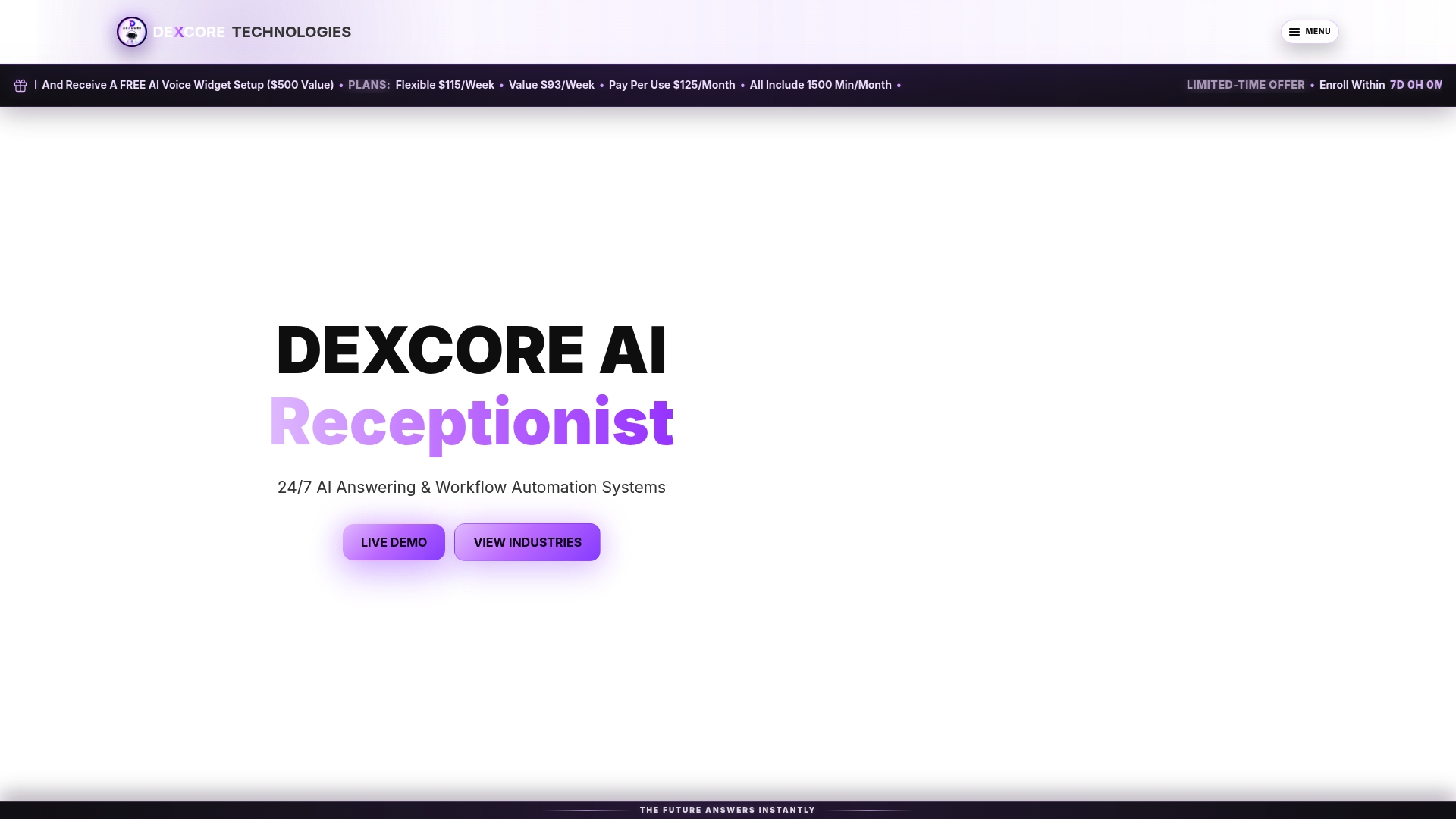
This matters most once your call volume or booking traffic outgrows what a connector or native booking page can handle reliably. A missed call that never becomes a calendar event is a lost customer, and that's the exact failure point Dexcoretechnologies is built to close for restaurants, clinics, contractors, and other appointment-driven businesses. If you run a service business and want two-way booking reliability without the maintenance overhead, take a look at AI receptionist options built for service businesses and see what a working setup looks like before you commit a developer to building it yourself.
Sources
- Google Workspace updates blog — Calendar API read/write
- Sync your calendar with computer programs - Google Calendar Help