
Enable new lead notifications in your CRM right now: add your email and phone to your profile, turn on push or SMS alerts, check that Do Not Disturb is off, and send a test lead to confirm delivery. That's the whole loop. Everything below helps you configure it properly, route it to the right person, and fix it when something breaks.
Quick-start checklist:
- Verify your email address is confirmed in your CRM profile
- Add a verified mobile number if you want SMS lead notifications
- Enable desktop or mobile push permissions in your browser and phone settings
- Turn off Do Not Disturb or quiet-hours settings during business hours
- Send a test lead submission and confirm delivery across every channel
Pro Tip: Set up a dedicated test contact in your CRM labelled "TEST LEAD" and run it through your full notification chain weekly. Delivery failures are silent — you won't know a channel is broken until you check.
Twilio, CASL (Canada's Anti-Spam Legislation), and Dexcoretechnologies all come up in this guide because they represent the three layers that matter most: the messaging infrastructure, the compliance framework, and the automation layer that ties them together for Canadian businesses.
Key takeaways
Configuring new lead notifications correctly, with the right channels, routing rules, and escalation paths, is the single most direct lever for improving lead response time and reducing missed opportunities.
| Point | Details |
|---|---|
| Verify contact info first | Confirm email and mobile number in every user's CRM profile before enabling any notification channel. |
| Match channel to team behaviour | Use email and push for desk teams; add SMS via Twilio only for field teams or high-priority leads. |
| Build an escalation path | Route unresponded leads from owner to backup to manager within defined SLA windows to prevent silent losses. |
| Test end-to-end weekly | Send a synthetic lead through every source and confirm delivery timestamps across all active channels. |
| Dexcoretechnologies automates the full loop | The platform captures leads 24/7, triggers CRM records, and routes SMS and voice fallback for Canadian businesses. |
Table of Contents
- What types of new lead notifications should your team use?
- How to set up lead alert notifications step by step
- How routing rules control who gets each alert
- Why your notifications aren't arriving and how to fix them
- How automation prevents missed leads: a Canadian example
- The notification trap most ops teams fall into
- How Dexcoretechnologies keeps Canadian businesses from missing leads
- Sources
What types of new lead notifications should your team use?
Not every channel fits every team. The right mix depends on where your people actually look during the day, how urgent each lead type is, and what your compliance obligations are under CASL.
SMS alerts can appear on a phone's lock screen in under 10 seconds, which is why field teams and contractors often prefer them over email. The tradeoff is interruptiveness: SMS is disruptive by design, so it works best when you limit it to leads that genuinely warrant immediate action.
For desk-based sales reps who live in their inbox, email plus a browser push covers most situations. Add a webhook to Slack or Microsoft Teams and you get the same alert inside the tool they're already watching. Twilio's API layer lets you route a single lead event to SMS, WhatsApp, email, or voice simultaneously, which is useful when your team spans both office and field.
Canadian compliance note: Under CASL, sending commercial electronic messages, including SMS and email, to Canadian recipients requires express or implied consent and a working unsubscribe mechanism. This applies to outbound lead-nurture messages. Internal team notifications (alerting your own staff about a new lead) are not commercial messages and fall outside CASL's scope, but any SMS your system sends to the lead requires consent. Verify your opt-in flow with a Canadian legal or compliance resource before going live.
How to set up lead alert notifications step by step
This checklist works across most CRM and lead management platforms. Run it as an admin first, then share the user-level steps with your team.
Admin-level setup:
- Open account or workspace settings and locate the Notifications section.
- Enable email notifications for new leads at the account level; confirm the sender domain is whitelisted.
- Add all notification recipient emails and confirm each address (Leadpages, for example, requires you to confirm additional recipient addresses before they receive alerts).
- Decide whether admins receive copies of notifications for leads assigned to other agents. Follow Up Boss lets admins opt into this — most enterprise CRMs offer a similar setting.
- Configure team-level or inbox-level notifications for unassigned leads so nothing sits unclaimed.
- Set quiet hours if your platform supports them; define the escalation behaviour when a lead arrives outside those hours.
User-level setup:
- Add a verified mobile number to your profile. SMS alerts won't send without it.
- Enable SMS notifications in your personal notification preferences.
- Grant push notification permissions in your browser (Settings → Notifications → Allow for your CRM domain).
- Install the CRM mobile app and grant notification permissions at the OS level (iOS: Settings → Notifications → [App]; Android: App Info → Notifications).
- Select your preferred notification template or confirm the default template is active.
Integration setup (Twilio/webhooks):
- For SMS or WhatsApp delivery, connect a Twilio account: add your Account SID and Auth Token in the CRM's integration settings. BookingKoala's lead module, for instance, routes SMS through Twilio and lets you enable, edit, or disable each channel per template.
- For Slack or Teams routing, create an incoming webhook URL in your workspace and paste it into the CRM's webhook field. Test with a manual trigger before going live.
- For custom routing, use your CRM's webhook or API to POST lead data to your automation layer (Zapier, Make, or a custom endpoint).
Pro Tip: Build your notification template to include lead source, lead score, the key qualifying answer (budget, timeline, service type), and a direct link to the CRM record. An alert that contains this context means a rep can decide and act from the notification itself, without opening three tabs.
How routing rules control who gets each alert
Assignment and notification are two separate things, and conflating them is one of the most common reasons leads go cold. A lead can be assigned to one rep while notifications copy a manager, a backup group, or a Slack channel simultaneously.
Routing methods to know:
Round-robin distributes leads sequentially across available reps. Simple, fair, and easy to audit. The risk is that a rep who is unavailable still gets assigned, so pair round-robin with an SLA escalation timer.
Territory or source-based routing sends leads to the rep or team responsible for a specific geography, product line, or lead source. This works well when your team has defined ownership and reduces the "whose lead is this?" confusion that delays follow-up.
Score or priority-based routing sends high-score or high-value leads to senior reps or a dedicated fast-response queue. Pair this with SMS or voice fallback so those leads get the most interruptive channel.
A simple escalation flow:
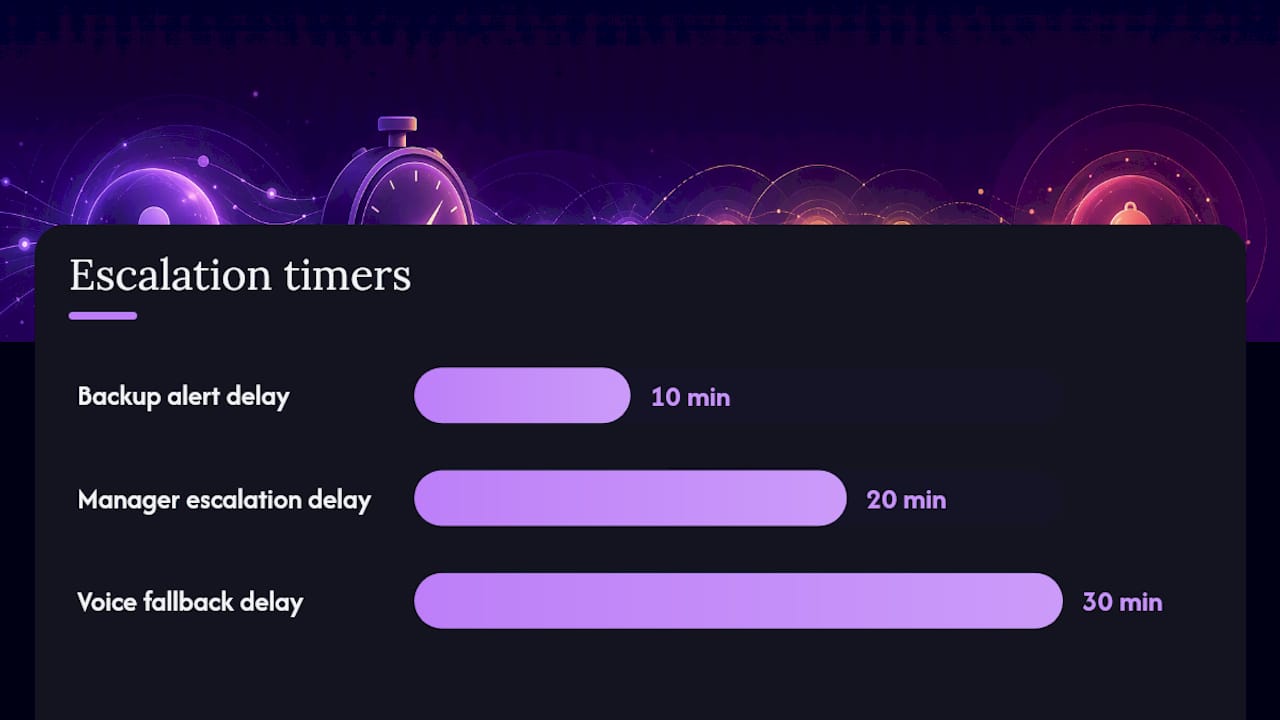
- Lead arrives → assigned owner receives immediate email + push notification.
- No activity logged within 10 minutes → backup group receives a secondary alert.
- No activity within 20 minutes → manager receives an escalation alert (email + SMS).
- No activity within 30 minutes → voice call fallback triggers via Twilio or similar.
InstaChime describes this primary → secondary → fallback model as the baseline for preventing missed leads. The exact SLA windows depend on your lead value and team size, but the structure holds across most B2B and service-business contexts.
Testing your routing: Create a test lead for each source type you have configured. Confirm the correct rep is assigned, check the timestamp on the notification against the lead creation time, and verify that the escalation timer fires if you deliberately leave the lead untouched. Log the results. Do this after any routing rule change.
Why your notifications aren't arriving and how to fix them
Silent failures are the worst kind. A broken notification channel looks like a slow team when it's actually a configuration problem.
Common causes of missed alerts:
- Email address unverified or missing from the notification recipient list
- Phone number absent from profile, or formatted without the country code (+1 for Canada)
- Notification emails landing in spam or junk (whitelist the CRM's sending domain)
- Mobile app push permissions denied at the OS level
- Browser push permission not granted, or browser closed when the lead arrived
- Do Not Disturb or Focus mode active on the device during business hours
- SMS throttling or daily messaging limits reached on the provider account
- Webhook endpoint returning a timeout or 4xx/5xx error
- Twilio Auth Token expired or Account SID misconfigured
- Template disabled or set to inactive in the notification settings
Diagnostic steps:
- Send a test lead through your form or CRM.
- Check the CRM's notification log or audit trail for a delivery attempt and timestamp.
- If email: check spam/junk, then check the CRM's outbound email log for bounce or block codes.
- If SMS: open the Twilio console (or your SMS provider's dashboard) and inspect the message log for status codes. A 30008 error means the number is unreachable; a 21211 means the number format is invalid.
- If webhook: check the webhook delivery log in your CRM and the receiving endpoint's response log. A timeout usually means the endpoint URL has changed or the server is down.
- If push: on the device, go to OS notification settings and confirm the app or browser has permission set to "Allow."
Missed notifications are rarely a single-point failure. Run the full diagnostic before assuming the problem is solved.
Canadian compliance reminder: If your automated workflows send SMS to leads (not just to your own staff), document the consent source for each number. CASL requires you to be able to demonstrate consent. Keep that record in your CRM or a linked data store.
How automation prevents missed leads: a Canadian example
The team had email notifications configured, but no escalation path and no SMS fallback.
After deploying a 24/7 AI receptionist and workflow automation layer, the architecture changed:
- Inbound calls after hours → AI receptionist answers, captures caller details, books or queues the appointment, and triggers an immediate CRM record creation.
- CRM record creation → webhook fires → Slack alert to the on-call rep + SMS via Twilio to the owner.
- No rep response within 15 minutes → escalation SMS to the backup contact.
- All interactions logged in the CRM with timestamps for SLA reporting.
Dexcoretechnologies attributes this kind of architecture to a potential ROI improvement of up to 942% for Canadian service businesses, stated as a client claim based on their automation deployments. The specific integrations in that pattern: CRM (for record creation and audit), Twilio (for SMS and voice fallback), calendar or booking system (for appointment confirmation), and Slack or Teams (for team alerts).
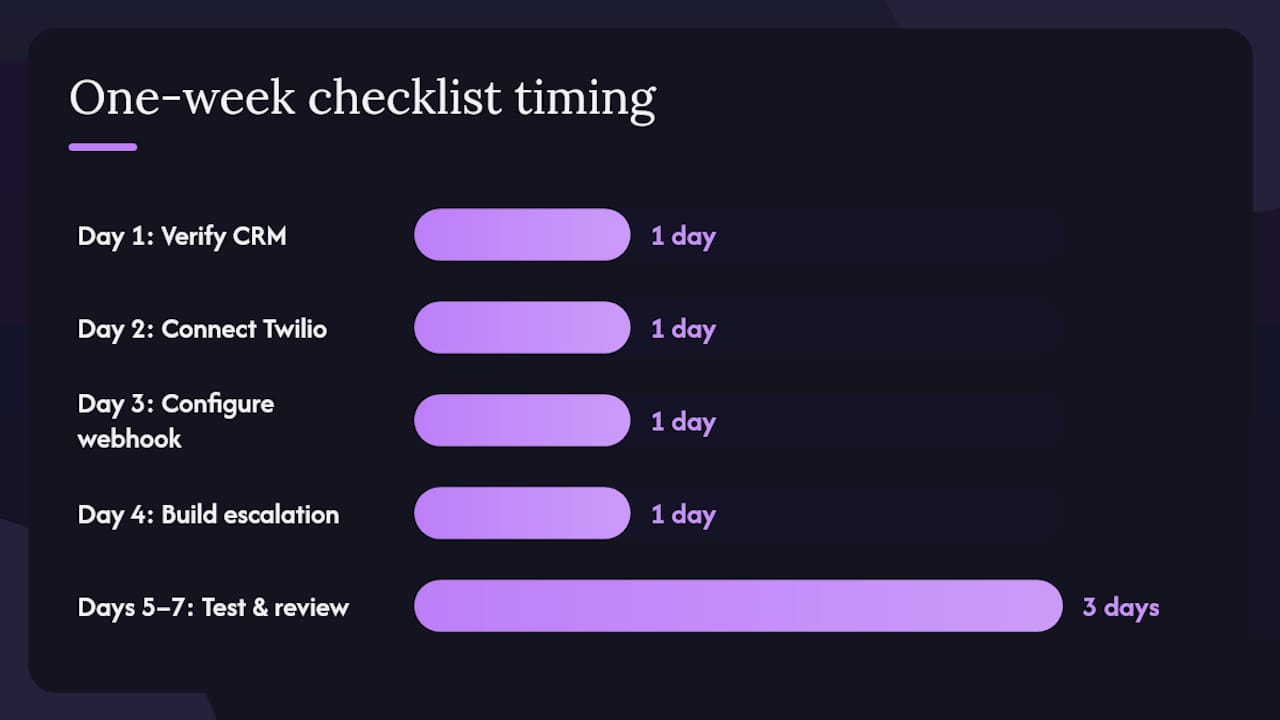
Minimal automation checklist to deploy in one week:
- Day 1: Verify all CRM notification settings and contact fields for every active user.
- Day 2: Connect Twilio for SMS; test delivery to each team member's verified number.
- Day 3: Configure webhook to Slack or Teams; test with a synthetic lead.
- Day 4: Build the escalation flow (owner → backup → manager) with SLA timers.
- Day 5: Run end-to-end tests across all lead sources; document results.
- Days 6–7: Review logs, fix any failures, and set a weekly test reminder.
The notification trap most ops teams fall into
Most teams I see configure notifications once and never revisit them. They add every channel, alert every team member on every lead, and then wonder why response rates drop. The problem isn't the technology. It's notification fatigue.
When every lead triggers an SMS to six people, reps stop treating the SMS as urgent. The signal degrades into noise. Within a few weeks, the most interruptive channel in your stack becomes the most ignored one.
The fix is not more channels. It's tighter routing. Reserve SMS and voice for leads above a defined score threshold or from your highest-value sources. Let email and in-app alerts handle the rest. Pandaflow's HubSpot-to-Twilio integration makes this kind of conditional routing straightforward: trigger the SMS only when a specific field value or lead score condition is met, not on every submission.
Speed to first contact matters more than perfect data at the moment of alert. A rep who calls a lead within five minutes of submission is far more likely to connect than one who calls an hour later with a fully enriched profile. Start with minimal viable alerts, measure your alert-to-contact time, and add complexity only where the data shows a gap. That's the 30-day roadmap worth following.
How Dexcoretechnologies keeps Canadian businesses from missing leads
Missing a lead after hours isn't a staffing problem. It's a systems problem, and it's fixable.
Dexcoretechnologies builds 24/7 AI receptionist and workflow automation specifically for Canadian businesses: restaurants, contractors, clinics, and service providers that can't afford a rep on the phone at 11 PM. The system answers calls, captures lead details, books appointments, and fires notifications through your existing CRM, SMS (via Twilio), and team chat tools, all without human intervention.
Key capabilities that map directly to what this guide covers:
- 24/7 lead capture with immediate CRM record creation and notification trigger
- SMS and voice fallback via Twilio for after-hours and high-priority leads
- Escalation workflows with configurable SLA timers and backup routing
- Webhook and CRM integrations for Slack, Teams, and custom endpoints
- Notification audit logs so you can prove delivery and measure response time
Dexcoretechnologies is built for the Canadian market, with CASL and CRTC considerations factored into the workflow design. For trade contractors and service businesses, the platform handles dispatch, booking, and alert routing in a single connected system.
Request a demo or start an integration audit at Dexcoretechnologies.
Sources
- New Lead Alerts - Notifications